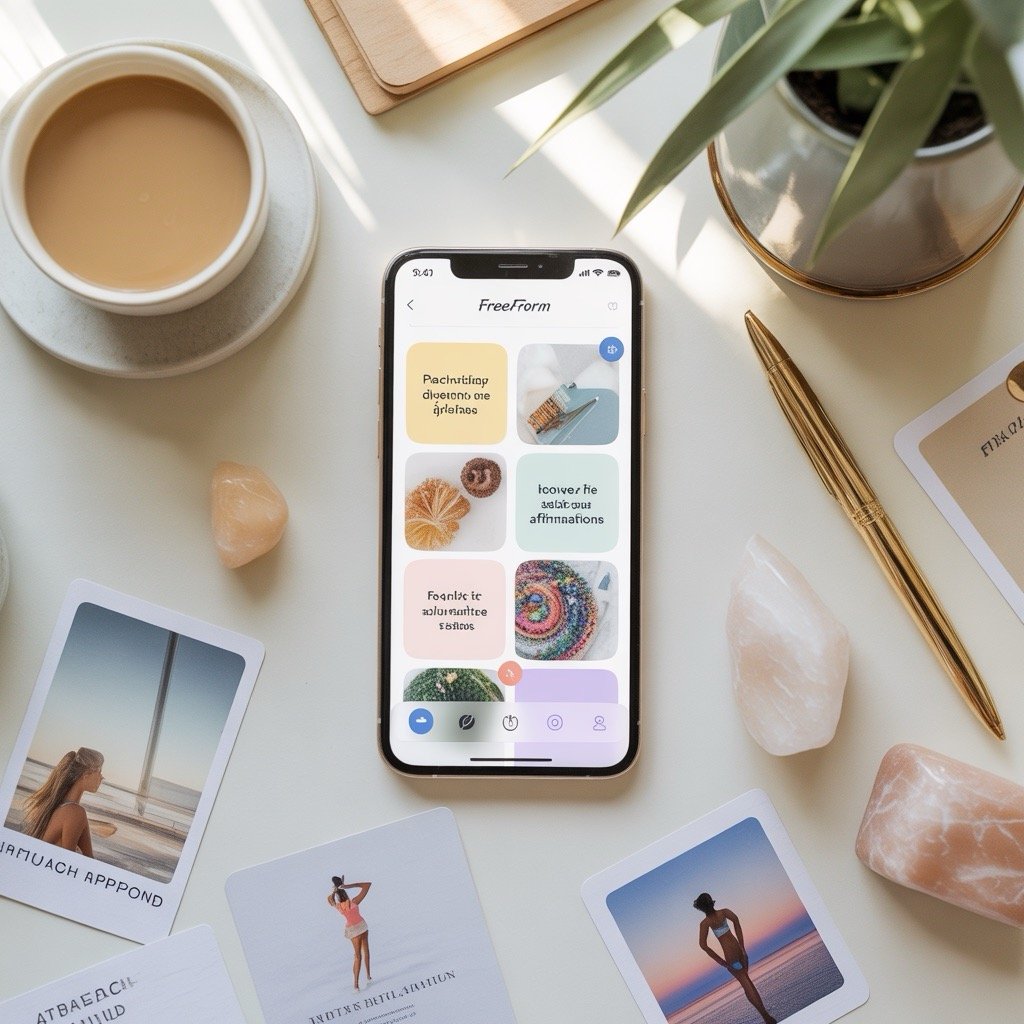
How to Make a Vision Board on iPhone (Complete 2026 Guide)
If you want your goals with you all day long, learning how to make a vision board on iPhone is the perfect place to start. A digital vision board on your phone is always in your pocket, so you can look at your 2026 goals every morning, during breaks, or before sleep. In this guide, you will learn how to use the Freeform app on iPhone to design a clear, inspiring, and practical vision board.
Why create a digital vision board on iPhone?
A traditional vision board usually sits on a wall in your home.
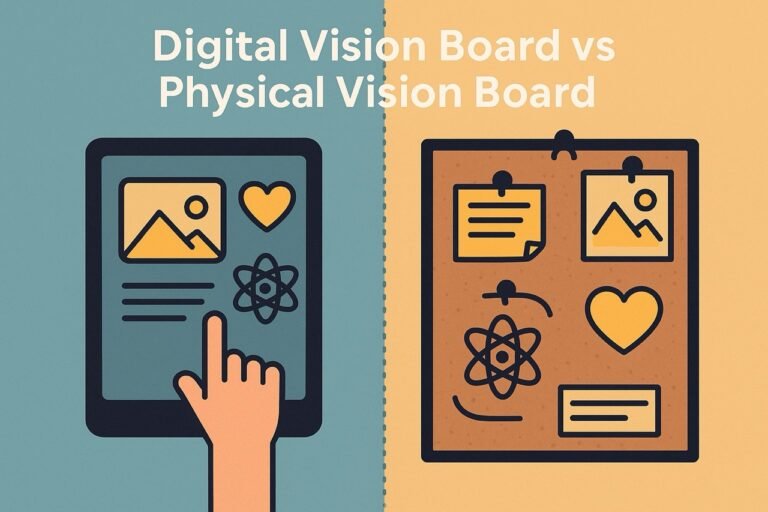
A digital vision board on iPhone is different.
It follows you everywhere and stays synced across your Apple devices with iCloud.
This makes it easier to stay focused on your goals, track your progress, and adjust your vision when your life changes.
When you turn your iPhone into a daily reminder of your dreams, you see your desired future dozens of times every day.
Step 1: Clarify your goals for 2026
Before you open any app, take a few minutes to brainstorm what you really want.
Think about the main areas of your life:
career, money, love, health, travel, creativity, and personal growth.
Write down a few clear goals for each category.
For example, a new remote job, a specific savings target, a dream trip, or a new skill you want to master.
These notes will guide which images and words you add to your iPhone vision board.
Step 2: Open Freeform and create a new board
On your iPhone, open the Freeform app.
Tap New Board to create a blank canvas.
Freeform gives you an infinite space where you can zoom in and out, move elements around, and organize everything visually.
This makes it ideal for a vision board on iPhone, because you are not limited by page size or fixed templates.
You can create one big board for all of 2026 or separate boards for different themes like Money, Love, or Health.
Step 3: Collect images for your iPhone vision board
Now it is time to gather visuals that represent your goals.
Use Safari, Pinterest, Instagram, or your existing Photos library.
Save pictures of dream homes, cities you want to visit, healthy meals, workouts, relationship vibes, or anything that matches your desired lifestyle.
The key is emotion.
Choose images that make you feel excited, inspired, and motivated.
Screenshots are also very useful if you see a quote or photo you want to keep on your digital vision board.
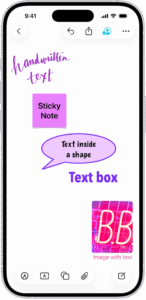
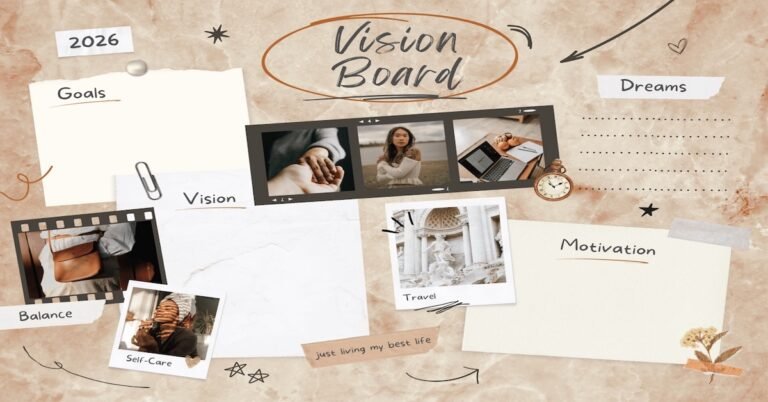
Step 4: Add photos and text to your Freeform board
Go back to your Freeform board and tap the Insert button.
Choose Photos and start adding the images you collected.
Drag and resize them until the layout feels balanced.
Then add text boxes with affirmations and power statements, such as:
“I am ready for new opportunities”, “I attract financial abundance”, or “My 2026 is full of aligned relationships”.
You can adjust font size, alignment, and color so that important words stand out.
This combination of images and text turns your Freeform canvas into a powerful iPhone vision board.
Step 5: Organize your vision board into clear sections
For better focus, group your content by theme.
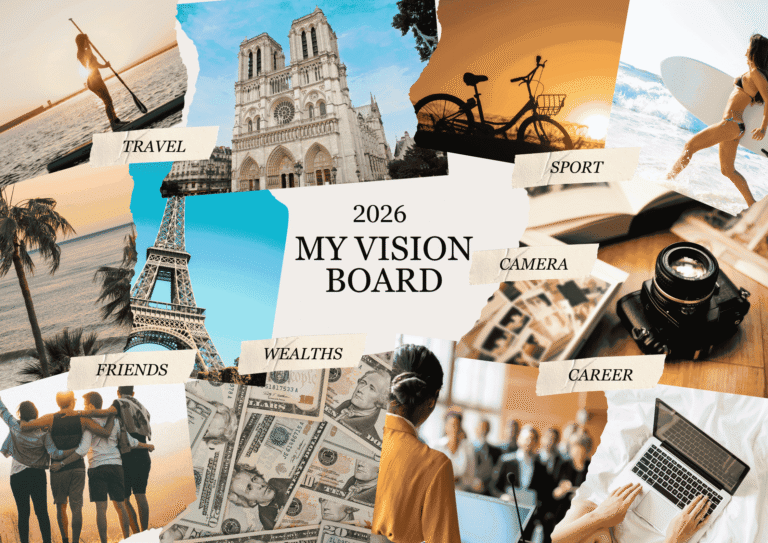
You can visually divide your board into areas like:
- Career & Business – promotions, dream projects, income goals
- Money & Abundance – savings, investments, debt free life
- Love & Relationships – partner qualities, relationship energy
- Health & Wellness – fitness, sleep, mental balance
- Travel & Lifestyle – destinations, experiences, daily routines
- Personal Growth – skills, hobbies, education, creativity
This structure helps your mind quickly scan the board and remember what you are working toward in each area.
Step 6: Personalize with colors, shapes, and handwriting
Freeform lets you draw, add sticky notes, use shapes, and highlight important elements.
Use different colors for different categories or to mark your top priorities.
You can circle key images, draw arrows between related goals, or add small checkboxes next to milestones.
The more personal your digital vision board feels, the more likely you are to connect with it and use it daily.
Step 7: Turn your iPhone vision board into wallpaper
When you are happy with the design, take a screenshot of your board.
Then go to Settings > Wallpaper > Add New Wallpaper and select the screenshot.
Use it for your Lock Screen, Home Screen, or both.
Now every time you unlock your phone, you see your 2026 vision.
This simple habit reinforces your goals at a subconscious level.
Step 8: Sync and update your digital vision board
To make your vision board on iPhone available on all Apple devices, enable iCloud sync for Freeform in your settings.
You can then continue editing your board on iPad or Mac with a bigger screen.
Remember that your digital vision board is not static.
Update it when you reach a goal or when your priorities change.
Remove images that no longer feel aligned and add new ones that reflect your current direction.
Learning how to make a vision board on iPhone is a simple but powerful step toward a more intentional life.
With Freeform and your own creativity, you can design a digital vision board that keeps your 2026 goals visible, organized, and emotionally inspiring.
Start today by opening Freeform, adding a few images and affirmations, and let your iPhone become a daily portal to the future you are creating.
Want more ideas? Read our guide on how to make a vision board in 5 simple steps for extra inspiration.