Create a Digital Vision Board in Canva: Easy Guide
If you’ve been wondering how to create a digital vision board using Canva, you’re in the right place. This comprehensive guide will walk you through every step, from conceptualizing your dreams to designing a stunning visual masterpiece you can display everywhere. Whether you’re aiming for career success, financial abundance, vibrant health, or loving relationships, mastering Canva will empower you to craft a powerful magnet for your ideal future. Let’s get started!
Why Choose Canva for Your Digital Vision Board Creation?
Canva has revolutionized graphic design, making it possible for millions to create professional-looking visuals without any prior experience. Here’s why it’s the ideal platform for your digital vision board creation:
- Intuitive Interface: Canva’s drag-and-drop editor is incredibly user-friendly, allowing you to easily add, resize, and arrange elements.
- Extensive Asset Library: Gain access to millions of free and premium photos, illustrations, icons, fonts, and graphics – perfect for visualizing every aspect of your dream life.
- Ready-to-Use Templates: Kickstart your design with an array of professionally designed Canva vision board templates that you can fully customize.
- Cross-Device Accessibility: Design on your computer, tablet, or phone, and access your project from anywhere with an internet connection.
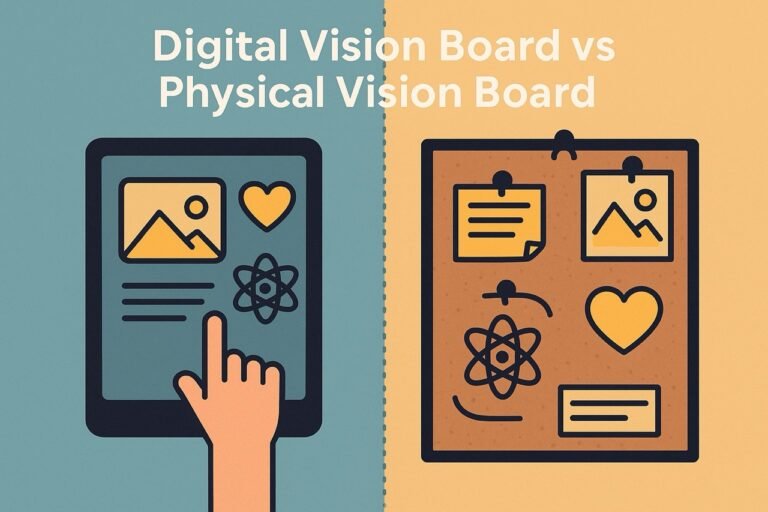
- Dynamic & Updatable: Unlike physical boards, a digital version can be easily adjusted as your goals evolve or manifest, allowing you to update your vision board with ease.
- Versatile Output: Download your board as a high-quality image (PNG, JPG) to use as a desktop wallpaper, phone background, or even print it out.
With Canva, creating a digital vision board becomes a seamless and enjoyable process, tailored to your unique aspirations.
Step-by-Step Guide: How to Create Your Digital Vision Board Using Canva
Step 1: Clarify Your Goals & Set Up Your Canva Account
Before diving into design, take time to reflect on your goals. What do you truly desire in areas like career, health, relationships, finances, and personal growth? The more specific you are, the more powerful your board will be. You can use our guide on How to Create a Vision Board for initial inspiration.
Next, head to Canva.com to create a free account if you don’t have one. The free version provides ample tools to create a stunning vision board
Once logged in, choose your canvas size based on where you plan to display your board:
- Desktop Wallpaper: Search for “Desktop Wallpaper” (common sizes like 1920 x 1080 px).
- Phone Wallpaper: Search for “Phone Wallpaper” (various sizes depending on your device).
- Custom Size: Click “Custom size” on the Canva homepage for specific dimensions, e.g., for printing.
Step 2: Choose a Vision Board Template (or Start Fresh)
Canva offers a treasure trove of design inspiration. In the search bar, type “vision board,” “mood board,” or “goals board.”
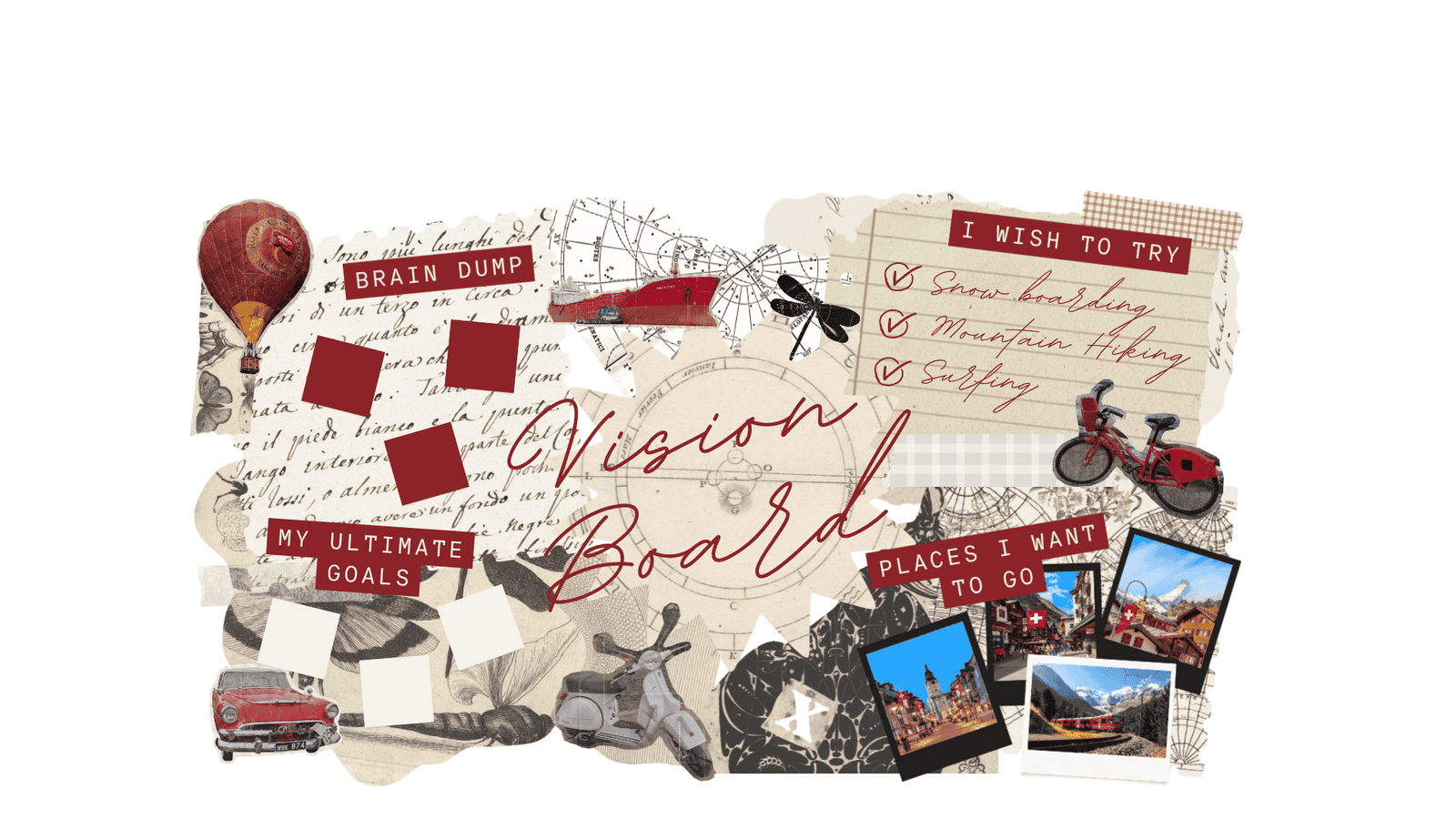
- Templates: Browse through the free and Pro Canva vision board templates. Pick one that sparks joy and aligns with your aesthetic. Remember, every element is customizable.
- Starting from Scratch: If you prefer full creative control, simply choose a blank canvas.
Step 3: Add Your Inspiring Images and Visual Elements
This is the heart of your digital vision board. Think about images that represent your goals vividly.
- Canva’s Photo Library: Use the “Photos” tab on the left. Search for keywords related to your desires (e.g., “travel destination,” “dream car,” “healthy food,” “successful career”). Drag and drop them onto your canvas.
- Upload Your Own: If you have personal photos or images from the web (ensure you have rights for any public sharing), use the “Uploads” tab to import them.
- Elements: The “Elements” tab offers shapes, lines, frames, stickers, and illustrations to enhance your design. Use these to create sections, add flair, or highlight specific areas.
Arrange your visuals thoughtfully. Consider using grids or frames to give your board a structured look, or allow for a more free-flowing, collage-like aesthetic.
Step 4: Incorporate Powerful Affirmations and Inspiring Text
Images capture the eye, but affirmations deeply impact your subconscious. They are essential for a truly effective manifestation tool. (Dive deeper into Vision Board Affirmations for crafting potent phrases).
- Text Tool: Select the “Text” tab. Choose from pre-designed text combinations or a simple heading/body text box.
- Write Your Affirmations: Type out positive, present-tense statements. Examples: “I am confident and capable,” “Abundance flows into my life,” “My relationships are joyful.”
- Customize: Experiment with Canva’s extensive font library, colors, and text effects to make your affirmations stand out and feel powerful.
Place your affirmations strategically, either directly on an image or in a clear space on your board.
Step 5: Refine, Personalize, and Finalize Your Design
Review your digital vision board and make any final adjustments:
- Layout & Composition: Ensure all elements are balanced and visually appealing. Is anything too crowded or too sparse?
- Color Palette: Are the colors harmonious and energizing?
- Remove Distractions: Delete any elements that don’t truly resonate with your goals.
- Personal Touch: Add your favorite quote, a personal photo, or any unique element that makes the board feel uniquely yours.
- Check for Clarity: Does every part of your board clearly communicate a desire? Does it make you *feel* good?
Take your time with this step; a well-refined board enhances its manifestation power.
Step 6: Download and Display Your Masterpiece
Your Canva digital vision board is complete! Now, make sure it’s seen daily:
- Download: Click the “Share” button (top right), then “Download.” Choose PNG for high quality or JPG for smaller file size.
- Display Everywhere: Set your downloaded image as your computer’s desktop background, phone’s lock screen, or tablet wallpaper. The more you see it, the more you reinforce your goals.
- Print (Optional): If you chose a printable size, print it out and place it where you’ll see it regularly.
- Share: Consider sharing your board (if comfortable) with an accountability partner or on social media for added inspiration.
Maximizing Your Digital Vision Board’s Effectiveness
The magic isn’t just in creating the board; it’s in the consistent interaction:
- Daily Visualization: Spend a few minutes each day looking at your board. Visualize yourself already having achieved each goal, and feel the emotions. This aligns with the principles of the Law of Attraction.
- Take Inspired Action: Let your board be a guide. What small, intuitive steps can you take today to move closer to your vision?
- Review and Update: As your goals manifest or evolve, remember to update your vision board. This keeps your intentions fresh and allows for continuous growth.
Unlock Your Potential with a Canva Vision Board
Learning how to create a digital vision board using Canva is a game-changer for anyone committed to personal growth and achieving their dreams. This accessible platform empowers you to design a powerful, personalized tool that harnesses visualization and manifestation. By following this guide, you’re not just creating an image; you’re crafting a dynamic blueprint for your future. Start your Canva vision board today and prepare to watch your aspirations come to life!
What’s the first dream you’re visualizing on your new Canva digital vision board? Share it in the comments below!